
How to Fix File System Error on Windows 11
October 20, 2025 Roman Kropachek
"Roman Kropachek is a Ukrainian-American software entrepreneur and product strategist, best known as the co-founder of CleverFiles (maker of Disk Drill) and Electronic Team. With 20+ years at the intersection of product, growth, and data, he builds and scales consumer tools used by millions worldwide".
Your daily work on the PC was interrupted by a file system error with a large, incomprehensible set of numbers? Or did you simply decide to foresee every possible scenario and prepare in advance? In any case, you definitely need us here. In this article, we’ll analyze the most common errors (of course, not absolutely all of them) and show how to fix system errors in Windows without unnecessary panic or confusion.
If you opened this guide right after your PC displayed a message about any system error, don’t rush to click random buttons or enter commands you found on the internet (that’s how you can make things worse). Just close the notification calmly and read the step-by-step solutions in this article.
What Is a File System Error and Why Do They Occur?
When Windows shows a file system error, it basically means something went wrong with how it reads or saves information on your disk. The system suddenly stops understanding its own data structure, maybe a folder can’t be reached, a file won’t open, or some internal link breaks. It doesn’t sound dramatic, but that’s enough to mess with normal work. Most of these problems appear after a bad update, damaged files, or tiny disk errors that add up over time. Sometimes it’s just a permission issue (Windows blocks itself from touching the data it needs). The good news is that you don’t always need to reinstall Windows and many of these problems can be fixed with built-in tools.
We’ve collected the most common file system errors that you can face and will provide methods for solving them. So, in this article, you’ll see how to fix the following errors:
| Error Code | Where It Appears | Meaning / Possible Cause |
|---|---|---|
| -1069587196 | When launching Windows apps or system utilities | Corrupted update files or damaged system components |
| -2144927436 | When opening Settings (ms-settings file system error) | Corrupted user profile or broken system links |
| -2147219200 | Microsoft Photos, Calculator, or Microsoft Store | Damaged app package or outdated Store cache |
| -805306367 | During startup or app installation | Missing DLLs or failed component registration |
| -1073740791 | When running demanding apps or after updates | Driver malfunction or malware infection |
| -2144926975 | When using Start Menu or taskbar search | Broken UI shell or corrupted system registry |
| -2018374635 | Accessing drives or external storage | NTFS file system corruption or disk failure |
| -2147416359 | Opening photos or documents | File permission or ownership mismatch |
How to Fix File System Error
Below we’ve prepared five reliable methods that can help you deal with most file system errors on Windows. Some of these fixes work for more than one issue, for instance, running CheckDisk often helps with both file system error -2018374635 and file system error -805306367. That means you’ll probably need to try several of them before finding the one that finally restores your system to normal.
Before you start, let’s talk about something people usually skip. A few of the repair steps below can wipe parts of your data, so take a minute to copy the most valuable files to a USB stick or an external hard drive. You’ll thank yourself later. If you ignore that advice and some files disappear during the repair, you can try to recover them with data recovery software for Windows. On top of that, some advanced tools like Disk Drill can bypass some Windows errors and get access to the data on the drive in question. That only works if those files haven’t been replaced by new ones, though. And just to be clear, if your main drive is an SSD, the built-in TRIM function usually wipes deleted blocks almost instantly, so recovery in that case is rarely possible.
Everything below shows how to fix file system errors in Windows 11, but these same steps apply to Windows 10 as well. The only difference you might notice is in the names of a few buttons or menu paths.
Method 1: Use SFC and DISM Commands
When system files get corrupted, Windows starts acting up in all sorts of ways. Apps may refuse to open, and even the Settings panel can stop working entirely, showing an ms-settings file system error instead of launching normally. In some cases, you might also see strange codes when trying to run basic utilities. This usually means that part of the system image is damaged. Windows already comes with a couple of built-in utilities that can fix this mess – SFC and DISM. These tools check whether your core files are intact and, if something’s broken, they pull a fresh copy straight from Microsoft’s source.
To put it simply:
- SFC looks for missing or corrupted files and restores them automatically.
- DISM repairs the deeper system image that SFC depends on.
Running both back-to-back usually sorts out several different file system errors and doesn’t affect your personal files.
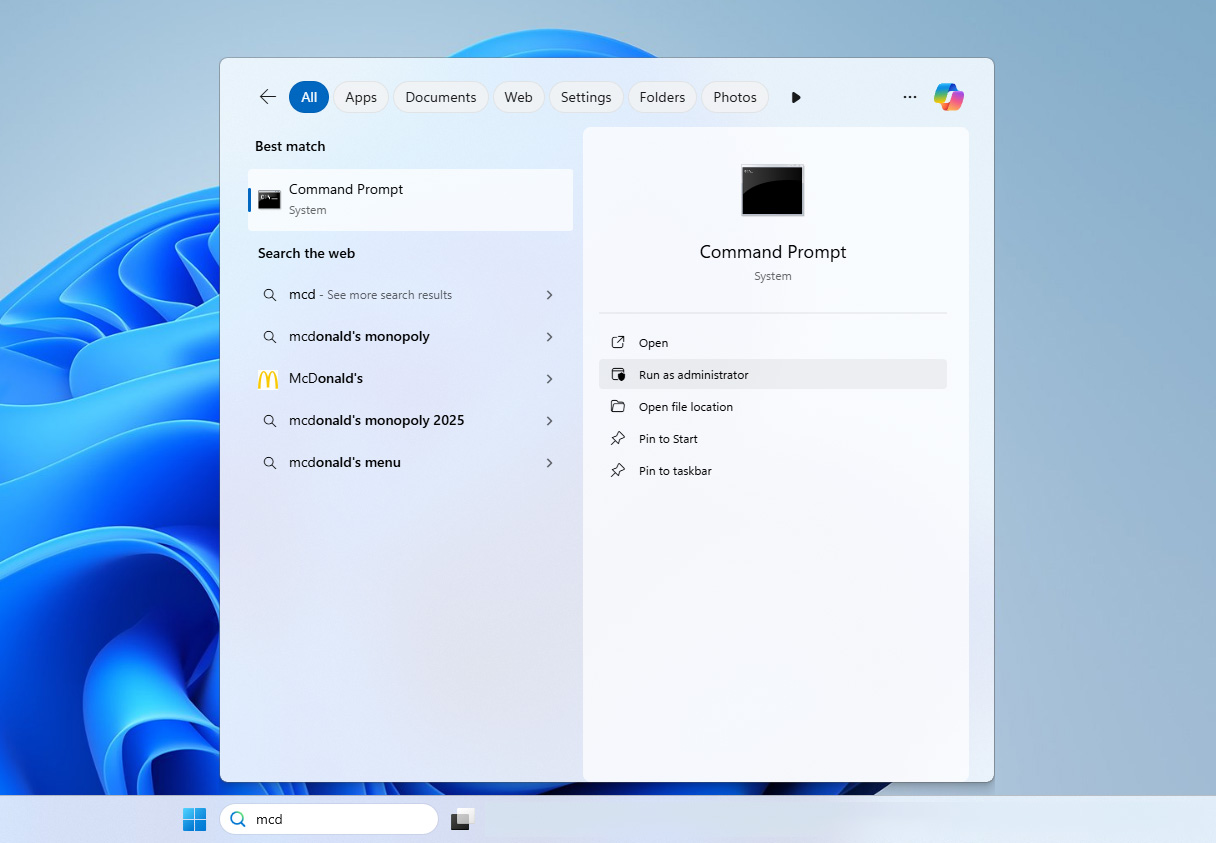
- Click Start, type cmd, then right-click Command Prompt and choose Run as administrator. If Windows asks for permission, just hit Yes.
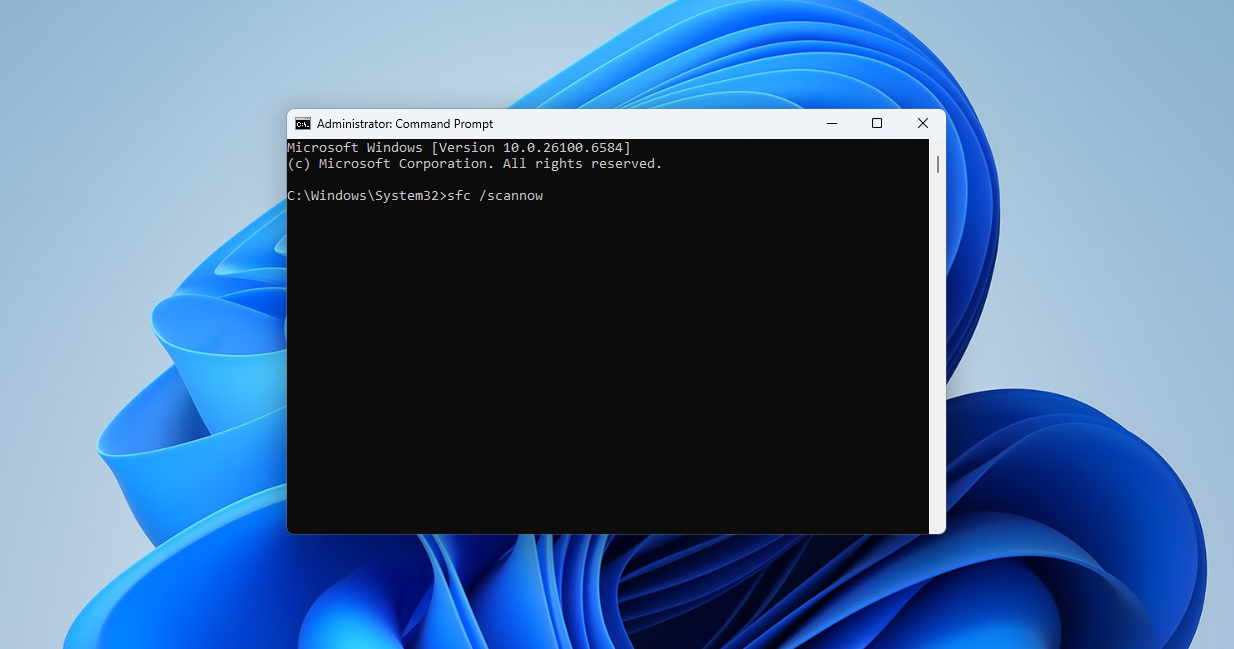
- In the black window, type: sfc /scannow and press Enter. The scan may take anywhere from 5 to 20 minutes depending on disk speed.
- Once it finishes, you’ll get one of two messages: Windows Resource Protection found corrupt files and successfully repaired them (you’re done); Windows Resource Protection found corrupt files but was unable to fix some of them (move on to the next step).
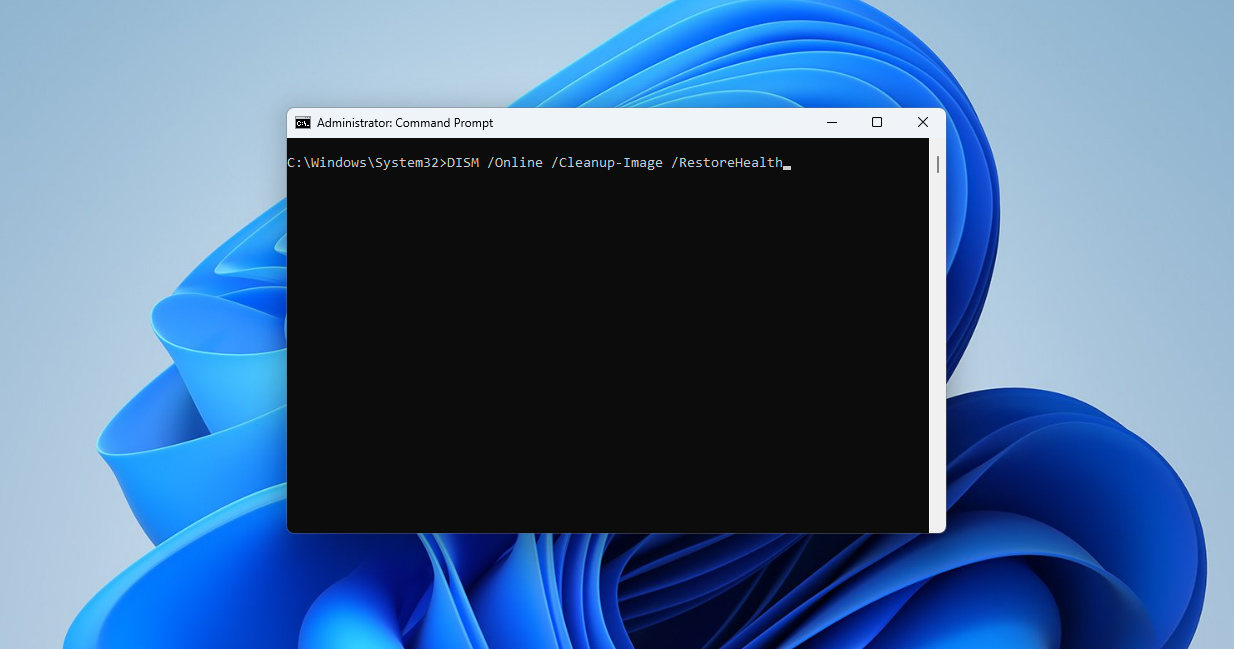
- Type DISM /Online /Cleanup-Image /RestoreHealth and press Enter. This command tells Windows to check its system image and download fresh copies of any damaged components directly from Microsoft’s servers. Once it reaches 100%, restart your computer.
- After that, run sfc /scannow one more time just to make sure every repaired file matches up correctly.
Method 2: Use CheckDisk to Fix Drive-Level Problems
Sometimes Windows doesn’t glitch because of broken files – it’s the drive itself that starts acting strange. You might notice errors when opening folders, slow response times, or even messages that mention metadata inconsistencies. When Windows reports that the file system encountered a metadata file with inconsistent data, it usually means the disk’s internal records no longer match what’s actually on it.
That’s not something SFC or DISM can fully fix, because the issue lives deeper – inside the file system structure. In this case, the most effective built-in tool is CheckDisk. It’s been part of Windows for decades and still does the job: scans the drive, finds bad sectors, and repairs logical problems that mess with file access.
- Open the Start menu, type cmd, and choose Run as administrator.
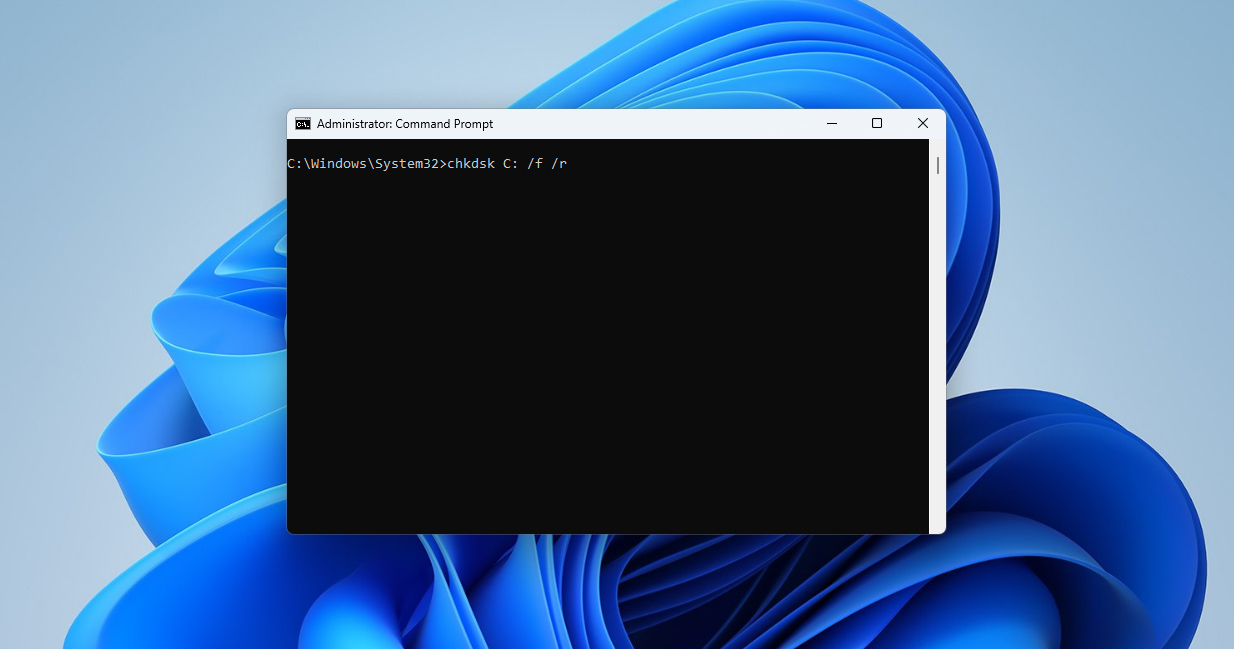
- In the command window, type chkdsk C: /f /r and press Enter. (/f tells Windows to fix found errors automatically, /r looks for damaged sectors and tries to recover data from them)
- If Windows says the drive is in use and asks to schedule the scan for the next restart, type Y and hit Enter. Then reboot your PC.
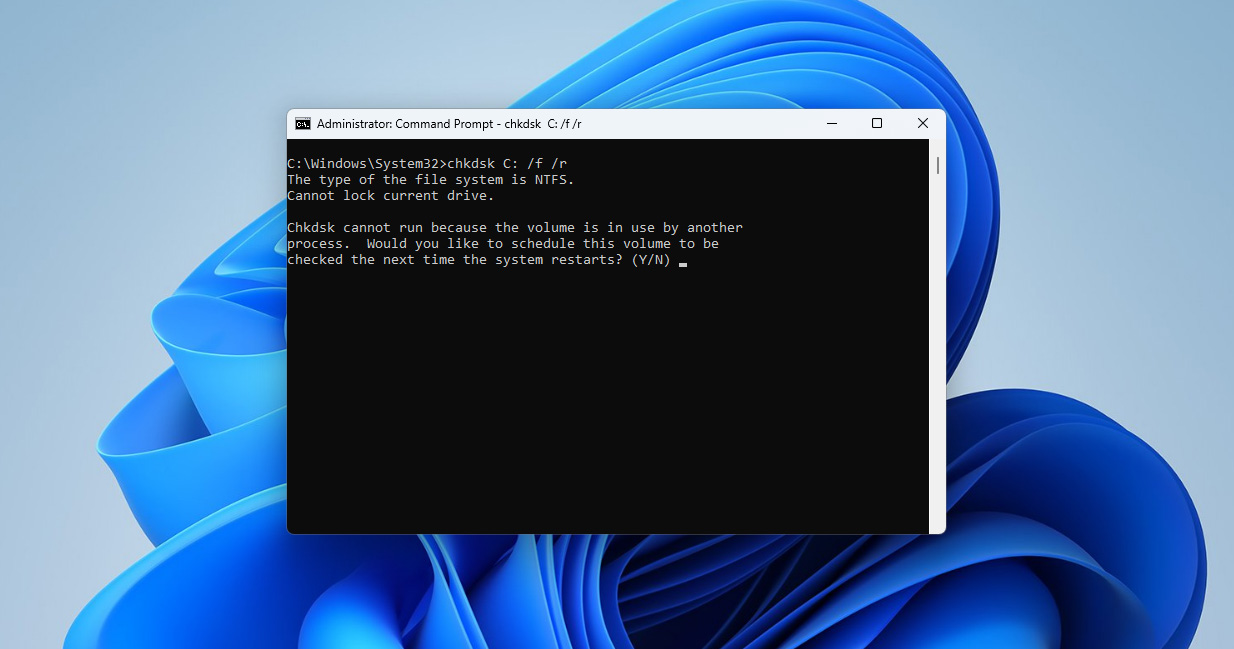
- After restarting, you’ll see a black screen with the scan progress. It can take a while, don’t touch anything until it’s done. When the process ends, Windows loads normally and shows a brief report. If everything went well, the file system should now work properly, and that long metadata error won’t return.
CheckDisk doesn’t fix dying drives, but it handles plenty of logic-level damage. If the same error keeps coming back, it’s a sign that the disk might be wearing out, so make a quick backup and think about replacing it before bigger problems appear.
Method 3: Reset the Windows Store and App Components
Every now and then, Windows breaks something that isn’t even part of the system core. The Store is a great example – one day it works fine, the next it throws a file system error or simply refuses to open. This happens more often after updates or when cache files pile up in the background. The easiest way to deal with it is to reset the Store completely. It’s quick, safe, and doesn’t uninstall your apps or remove purchases, just clears out broken temporary data.
- Press Windows + R to open the Run window.
- Type wsreset.exe and press Enter.
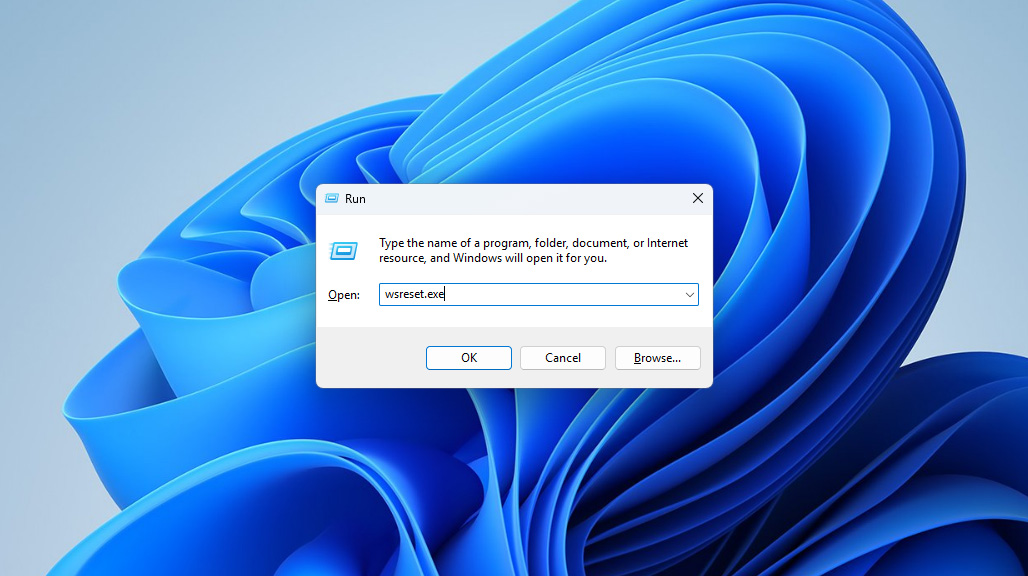
- A black Command Prompt window will appear for a few seconds and close automatically. After that, the Microsoft Store should open on its own. If it doesn’t, launch it manually and check whether it loads properly.
That’s really all you need to do most of the time. For many users, this simple reset fixes the problem right away.
Method 4: Repair App Permissions and User Profile Settings
When permissions get mixed up, apps can’t reach the folders or registry entries they need, this means that the problem is with your user account. Fortunately, you don’t have to change the registry or reinstall Windows to fix this. A few simple resets can bring everything back to normal.
- Open File Explorer and go to C:\Users\<your username>\AppData\Local\Packages. (If you don’t see AppData, click View > Show > Hidden items.)
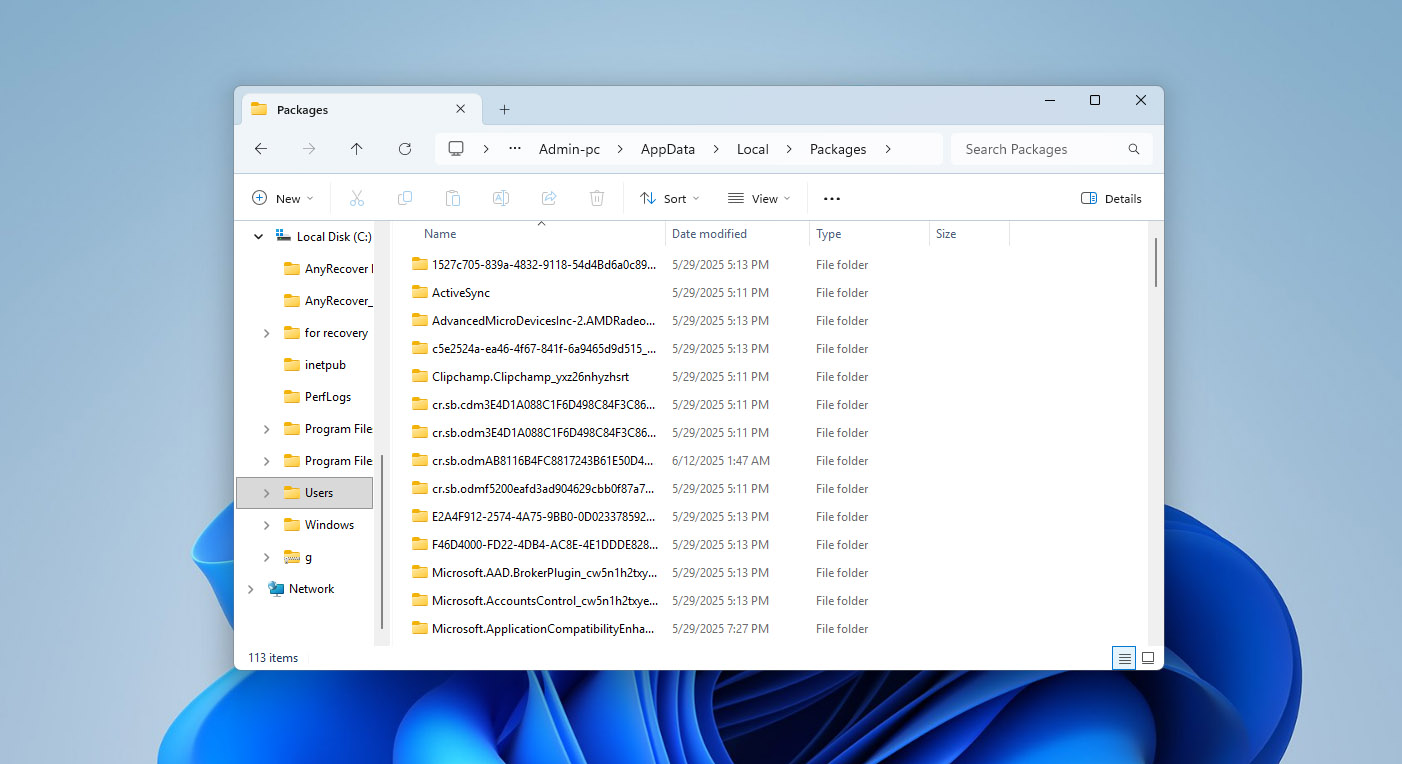
- Find the folder that starts with Microsoft.WindowsStore.
- Right-click it > Properties > Security > Advanced.
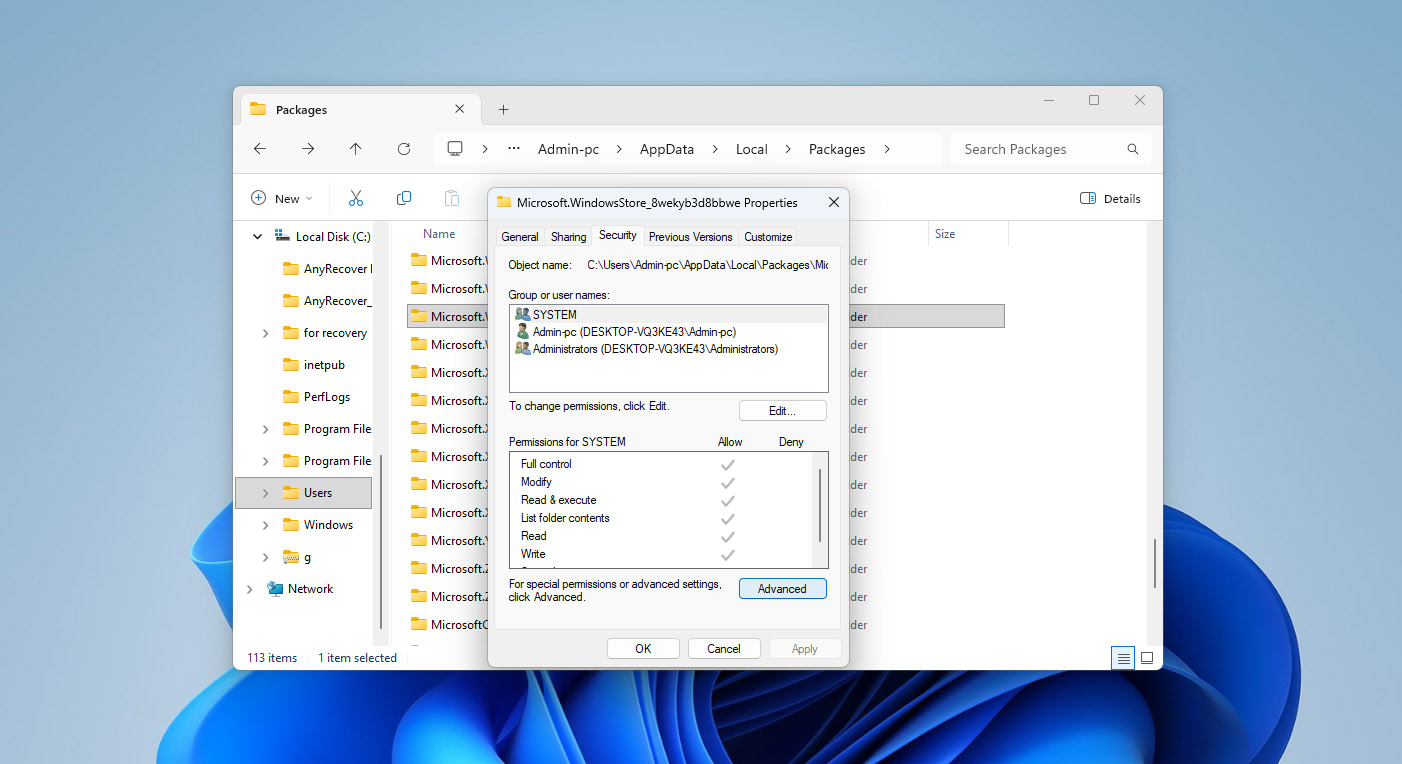
- Make sure your username is listed as the Owner. If not, click Change, type your account name, and apply the change.

If permissions look fine but the error keeps coming back, your Windows profile might be damaged. It happens after updates or partial file migrations.
Here’s the cleanest way to test that:
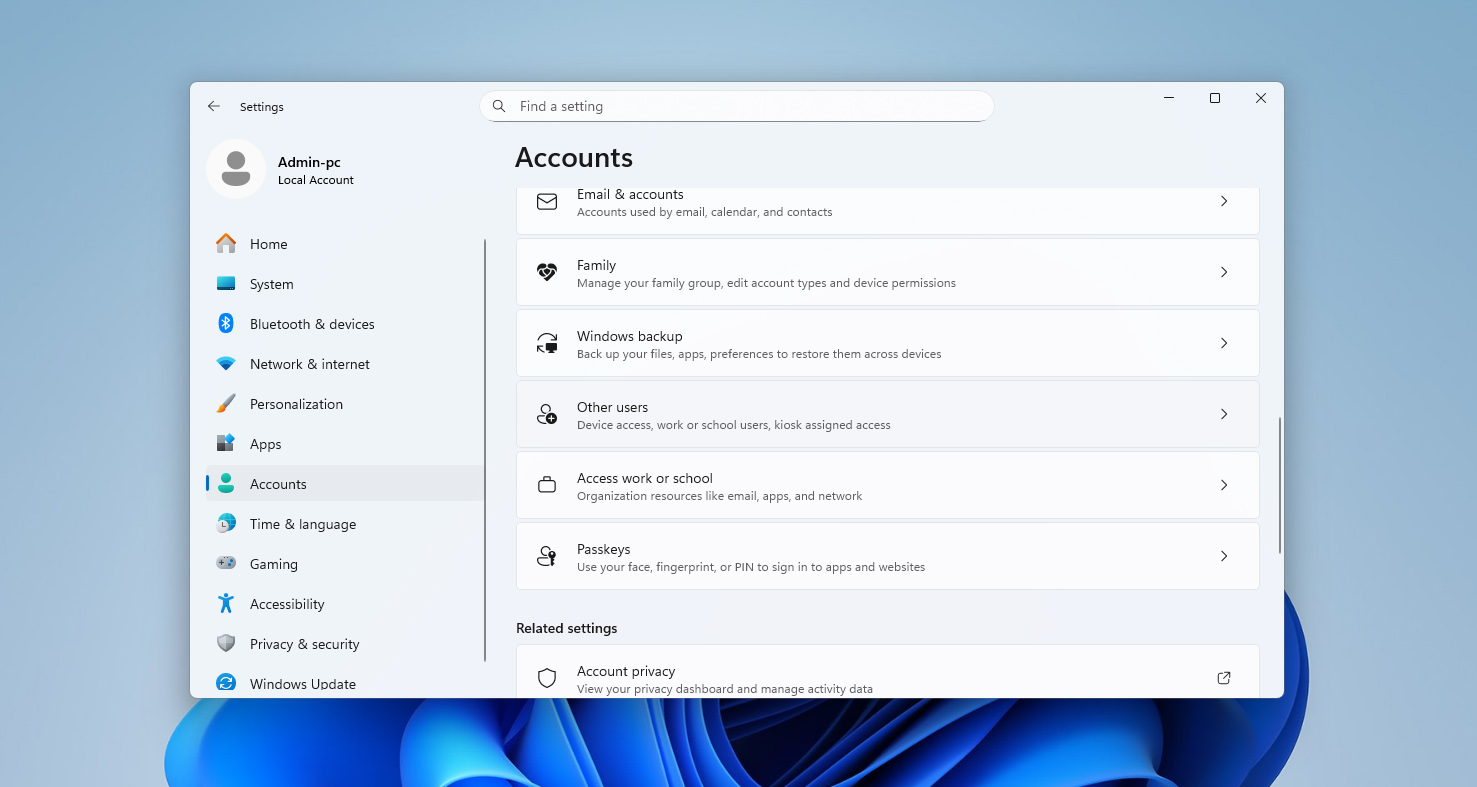
- Open Settings > Accounts > Other users.
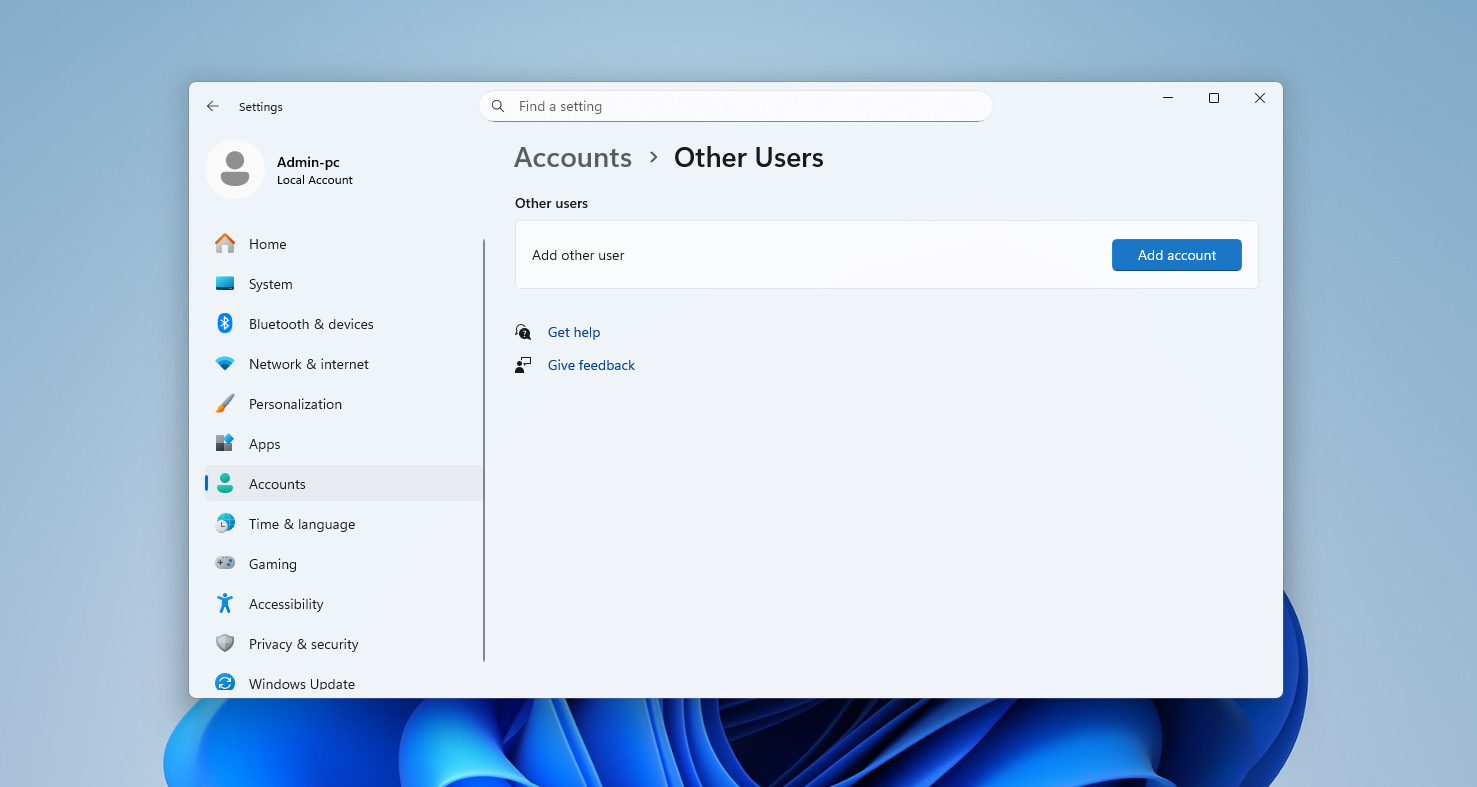
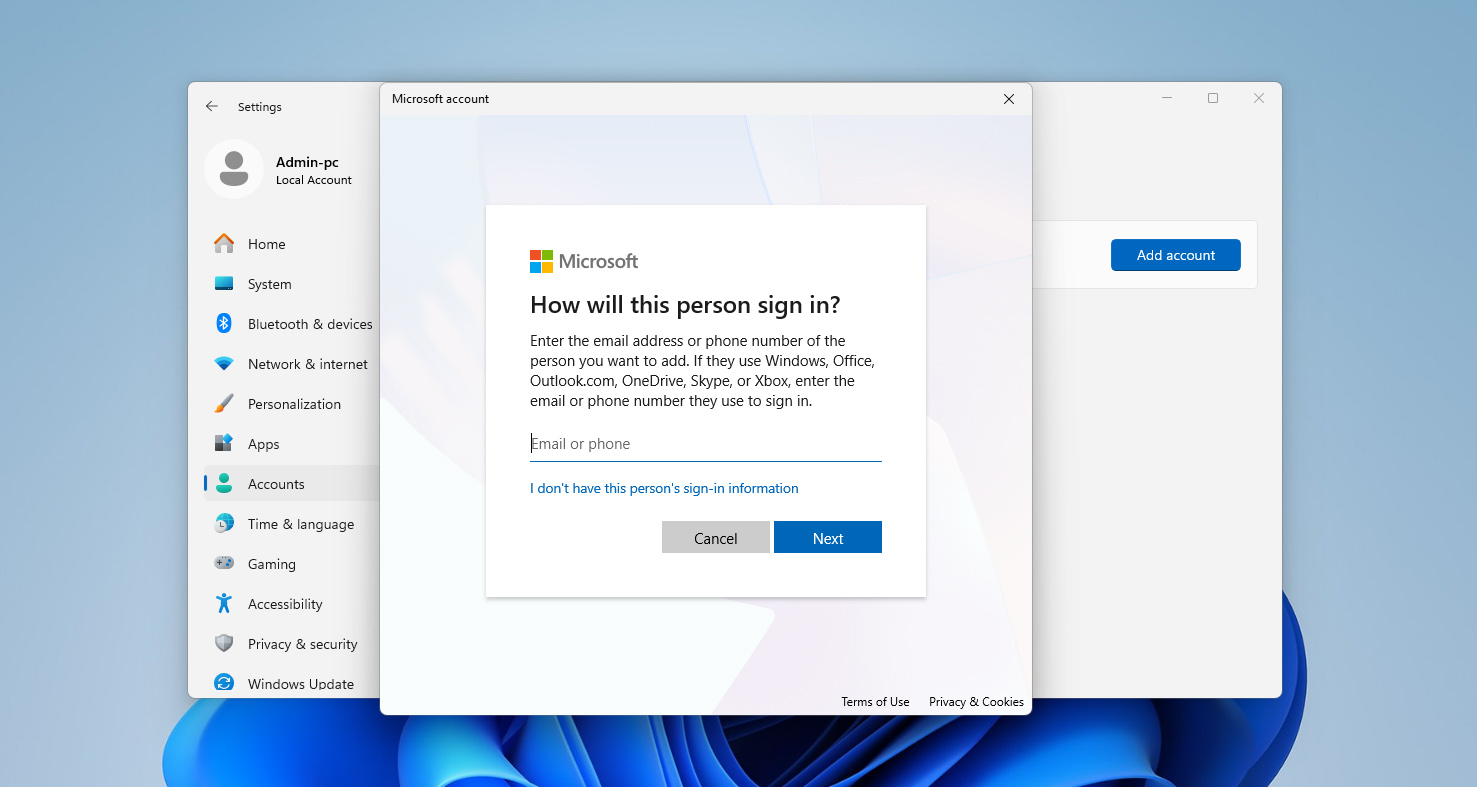
- Click Add account and create a local or Microsoft account.
- Sign in under the new account and try launching the Store or Settings. If everything opens normally there, you’ve confirmed the issue lives inside your old profile. You can either move your files to the new account or delete the corrupted one later.
Method 5: Reset Windows as a Last Resort
If none of the previous methods fixed your problem and the system still shows strange codes, apps refuse to open, or the same file system error keeps returning, it’s time to use the final option: resetting Windows. This is not as scary as it sounds. The reset feature reinstalls the system core while keeping your activation, drivers, and most settings intact. But still, treat it as a serious step.
- Open Settings > System > Recovery.
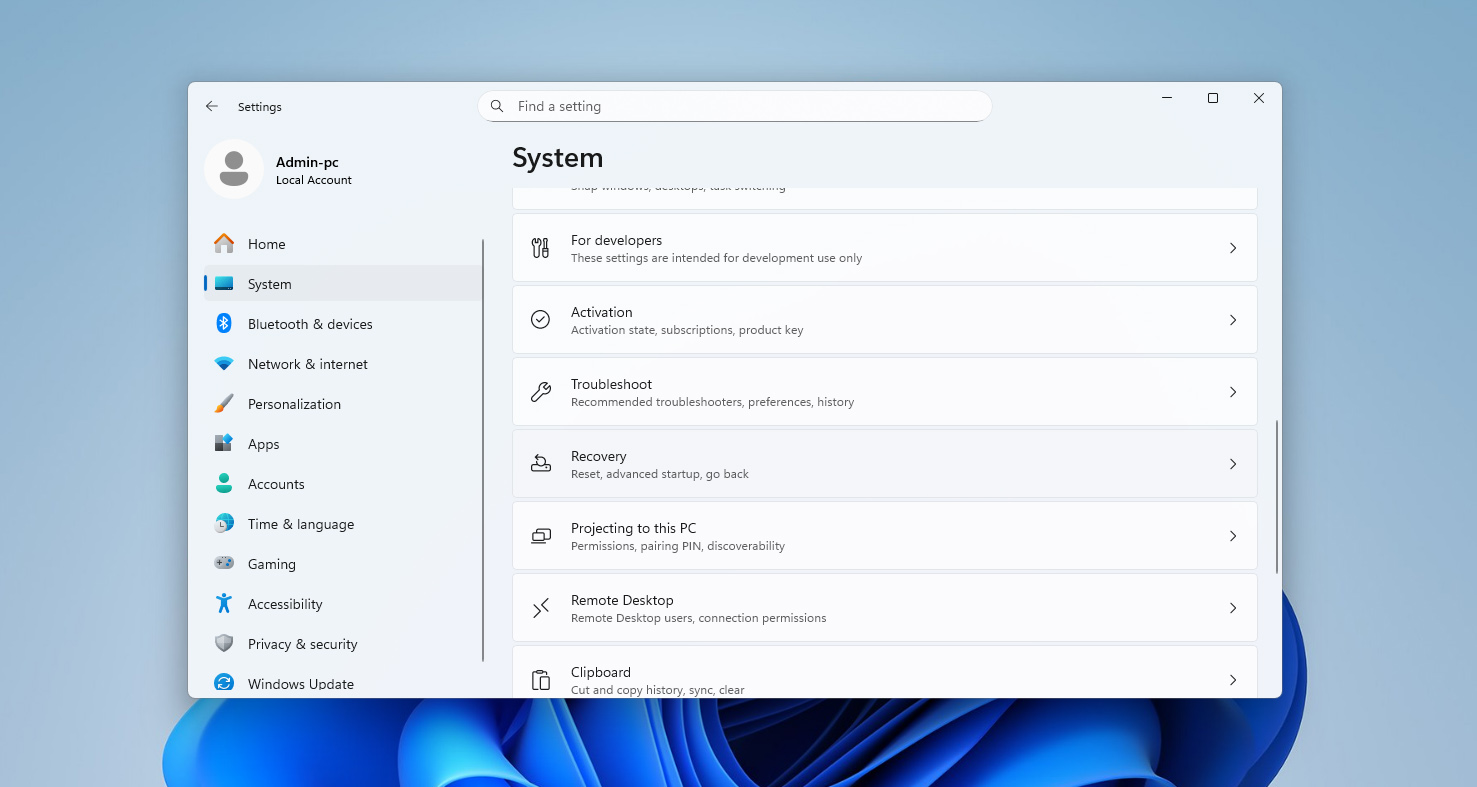
- Under Recovery options, click Reset this PC.
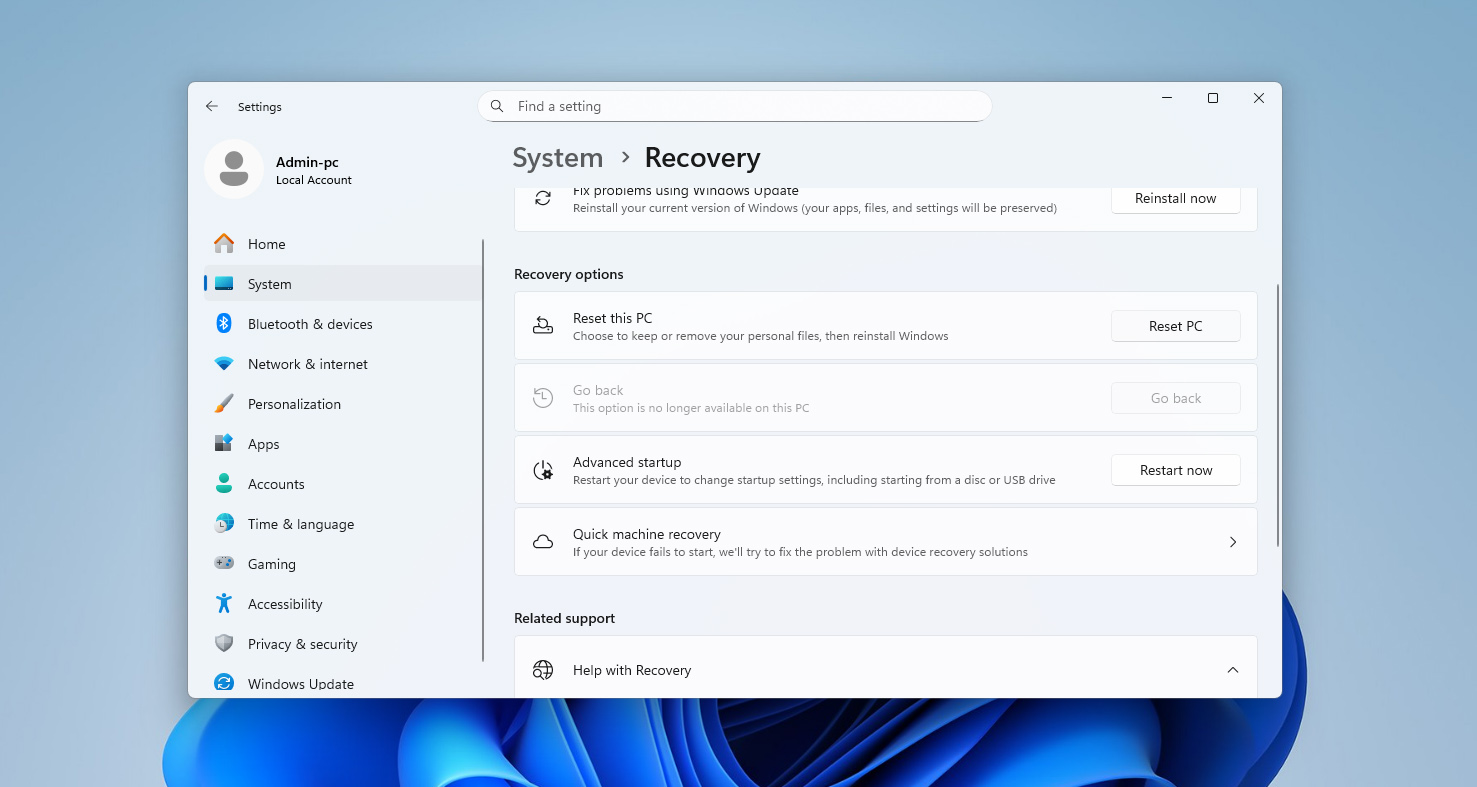
- Choose Keep my files if you want to save your personal data, or Remove everything for a completely fresh system.
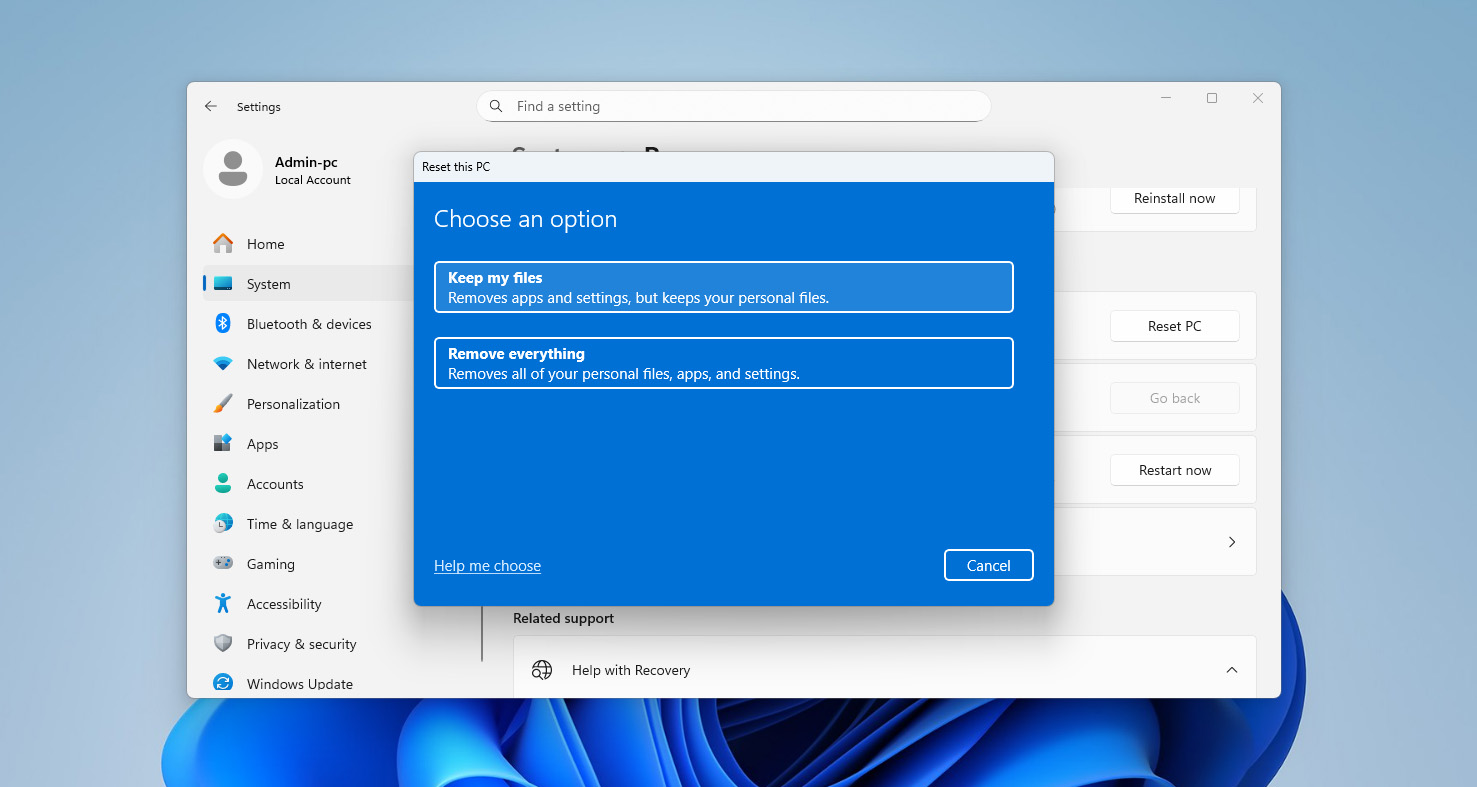
- Follow the on-screen steps and wait while Windows reinstalls itself. It will restart several times (just let it finish). When the process ends, you’ll see a clean desktop, free from the leftover issues that caused all the errors.
Now, a bit of honest advice: even though Windows gives you the option to keep your files, don’t depend on it completely. Before you start, copy your important data onto a flash drive or an external hard disk. It only takes a few minutes and could save you from a nasty surprise. After the reset, you can move everything back and reinstall your favorite apps one by one.
Conclusion
Now you know how to fix most file system errors that can appear on a Windows PC. It’s not rocket science, but it’s not something you solve in two clicks either. If you go through the steps carefully and don’t rush, everything here is completely doable, even for a regular user.
We’d honestly suggest saving this article in your bookmarks. So the next time Windows throws another error code at you, you won’t have to search for solutions all over the internet, the right answer will already be here.
And one more bit of advice. If you don’t want to deal with file system errors every few weeks, keep an eye on the SMART data of your system drive. There are plenty of free tools that can show when your disk starts to wear out. When that time comes, you’ll be ready to replace it instead of losing data unexpectedly.