
How to Customize Your Windows Icons
A Step-by-Step Guide
January 29, 2025
Windows is great, but its default icons can feel a bit stale. If you want to move beyond the "Yellow Folder" look and create a truly personalized workspace, WinShift Forge is one of the best tools for the job.
Here is how to change icons on your system, from your hard drives to the Recycle Bin.
Before You Begin
You will need the right tool for the job. Download and install WinShift Forge from the official website:
Download WinShift Forge
Preparation: Get Your Icons Ready
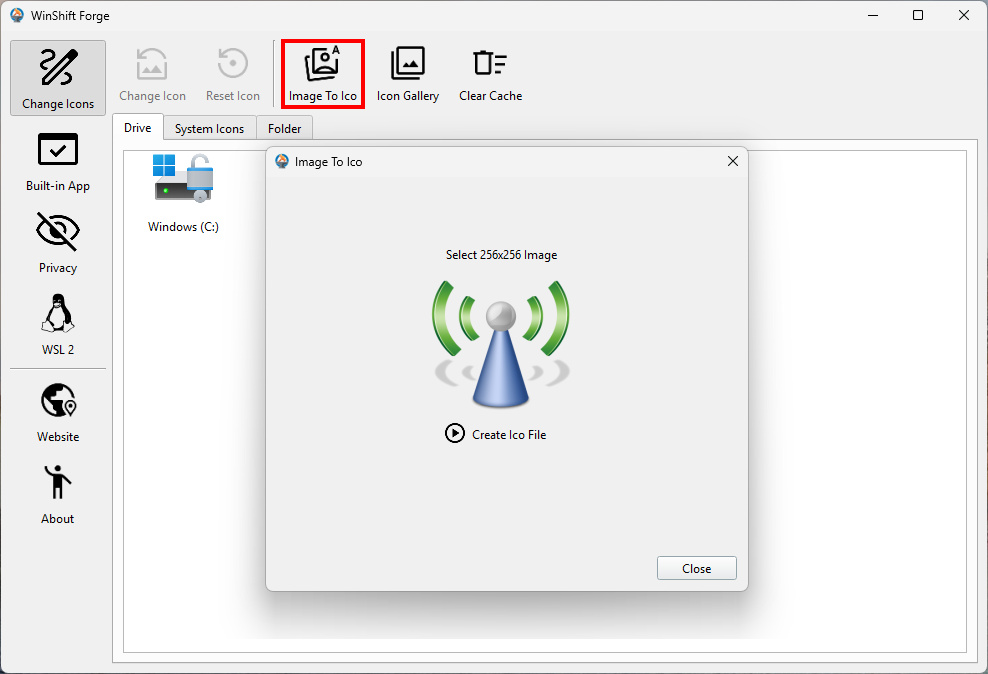
Before starting, ensure your custom icons are in the .ico format. High-resolution icons (256x256 pixels) look best on modern displays, ensuring they stay crisp even when you use the "Large Icons" view.
💡 Pro Tip: If you only have PNG or JPG images, don't worry. You can use the WinShift Forge Image To Ico feature to instantly turn any 256x256 image into a compatible .ico file.
This saves you from having to use sketchy online converters!
Customizing Drive Icons
Want your SSD to look like a high-tech chip or your External Drive to look like a vault?
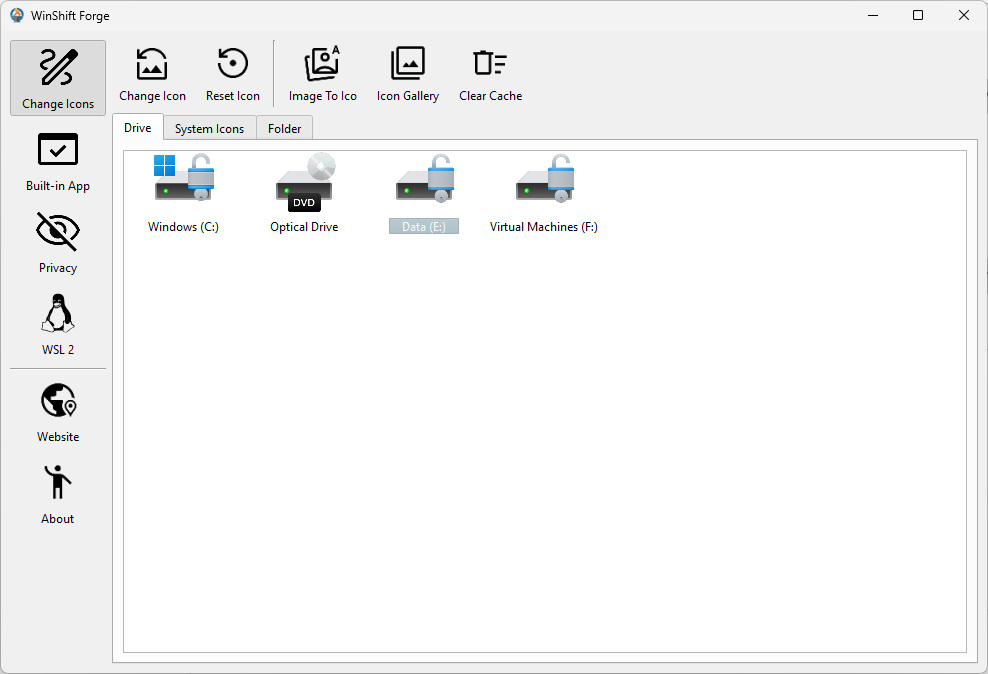
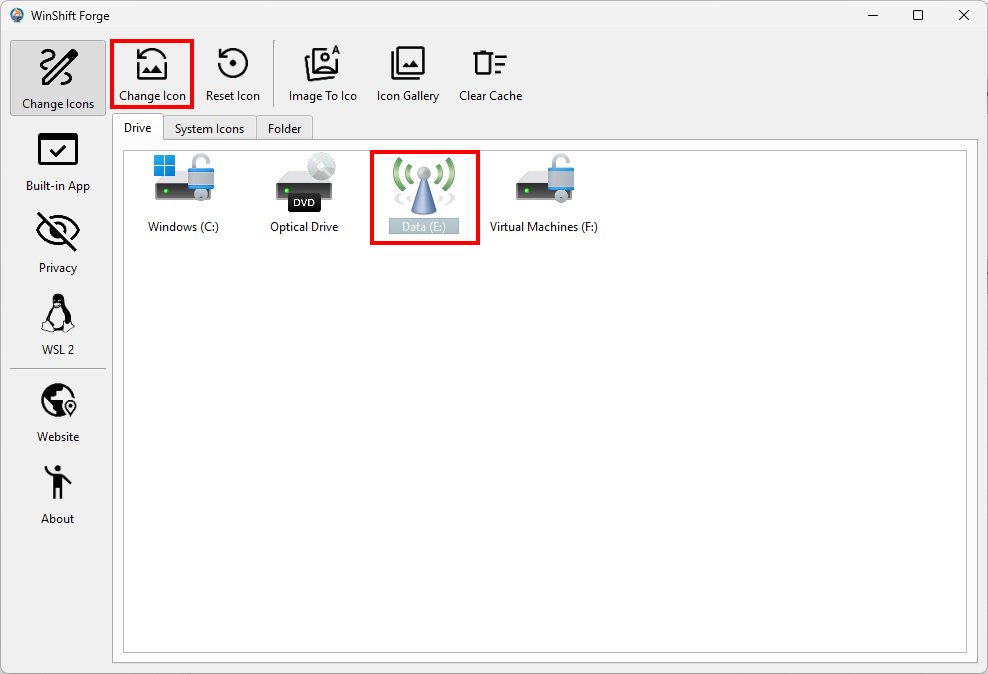
- Open WinShift Forge and navigate to the Drive tab.
- Select the specific drive letter you want to change (e.g.,
C:orD:). - Click Change Icon and browse to your preferred .ico file.
Changing System Icons (This PC, Recycle Bin, Network)
These are the "anchors" of your desktop. WinShift Forge makes changing these easy:
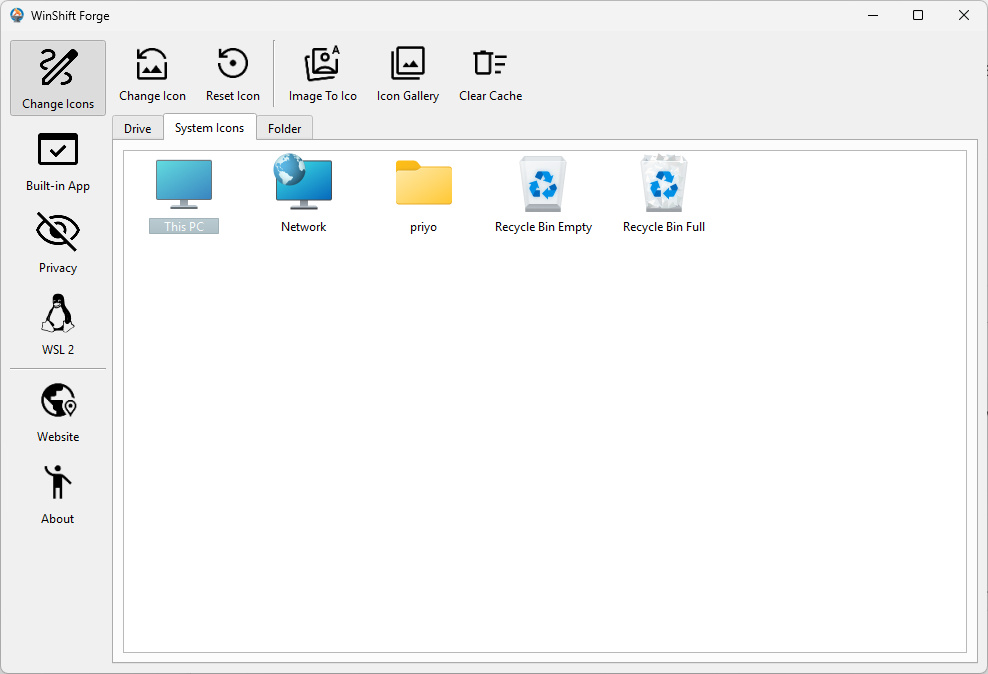
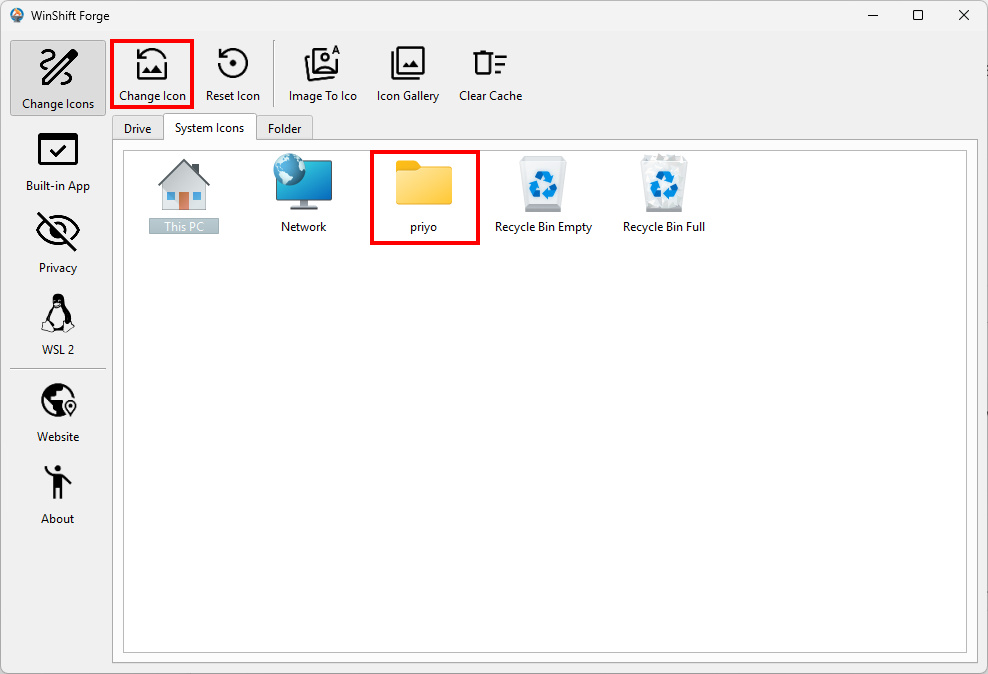
- Open WinShift Forge and navigate to the System Icons tab.
- Select the icon you wish to change (e.g., This PC or Full Recycle Bin).
- Click Change Icon and browse to your preferred .ico file.
Individual Folder Customization
For specific folders (like "Work" or "Games") that you want to stand out:
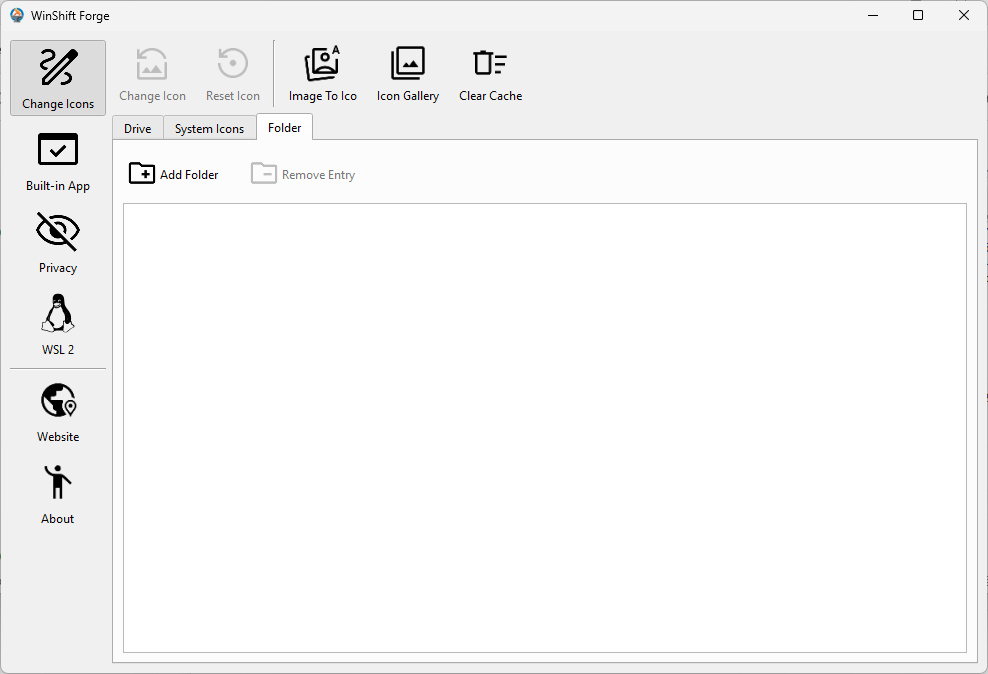
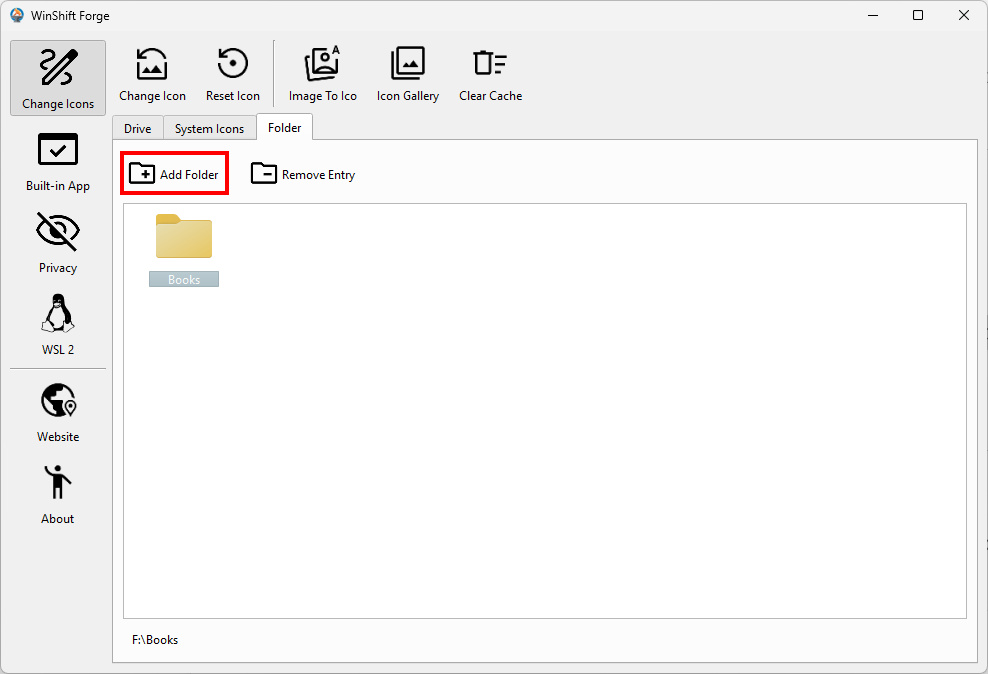
- Open WinShift Forge and navigate to the Folder tab.
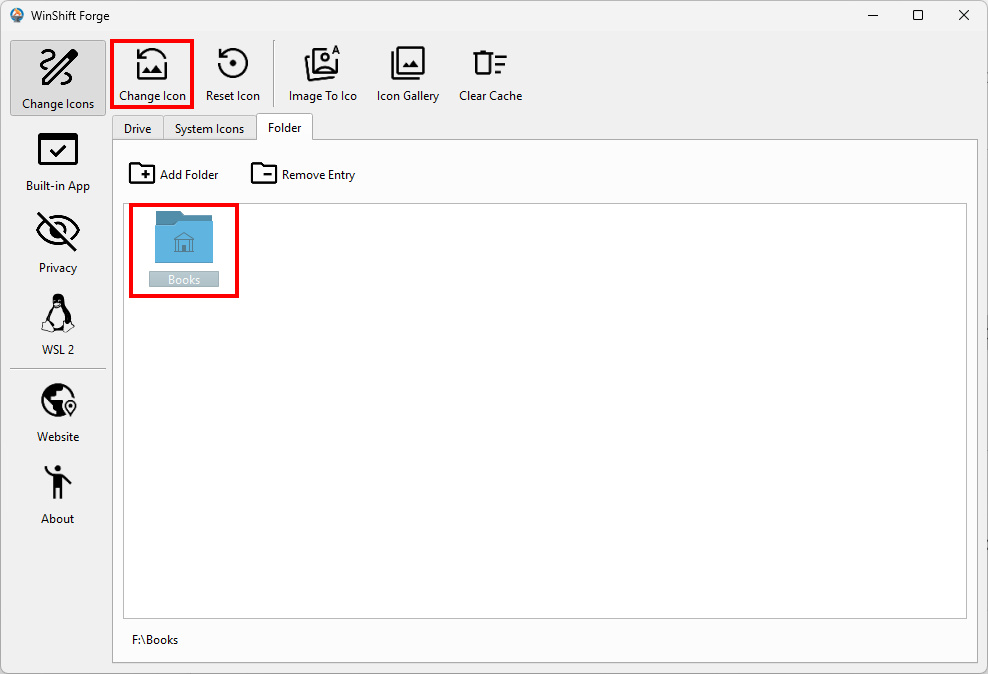
- Click the Add Folder button to pick the specific folder you wish to customize.
- Click Change Icon and browse to your preferred .ico file.
How to Restore Default Windows Icons
If you ever want to return to the original Windows look:
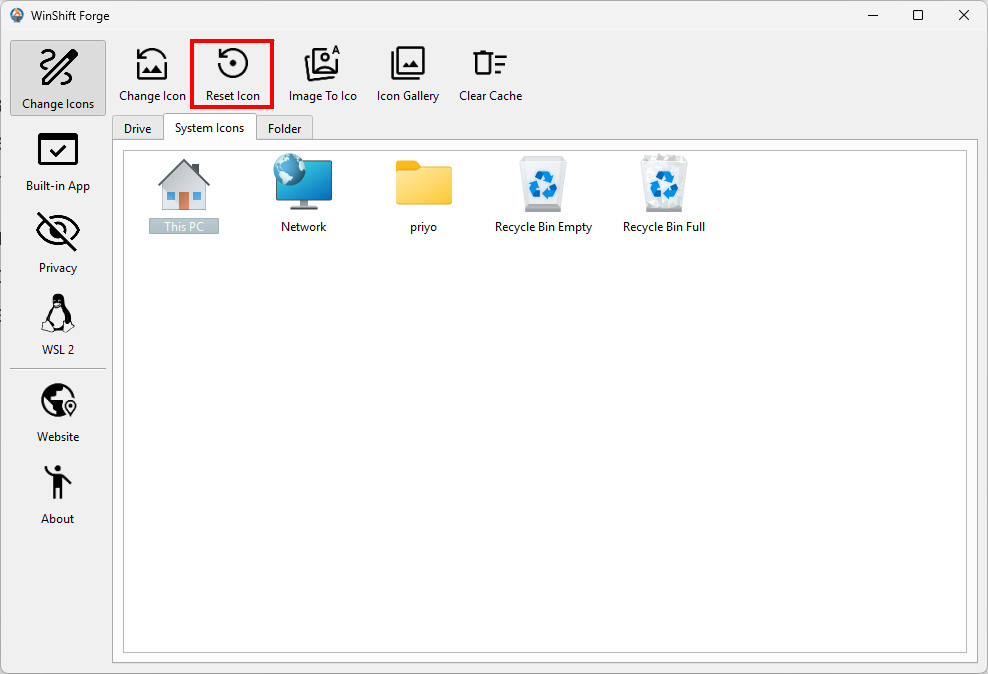
- Navigate to the appropriate tab (Drive, System Icons, or Folder) and select the item you want to restore.
- Click the Reset Icon button located on the toolbar.
🛠 Pro Tip: Fixing "Ghost" Icons
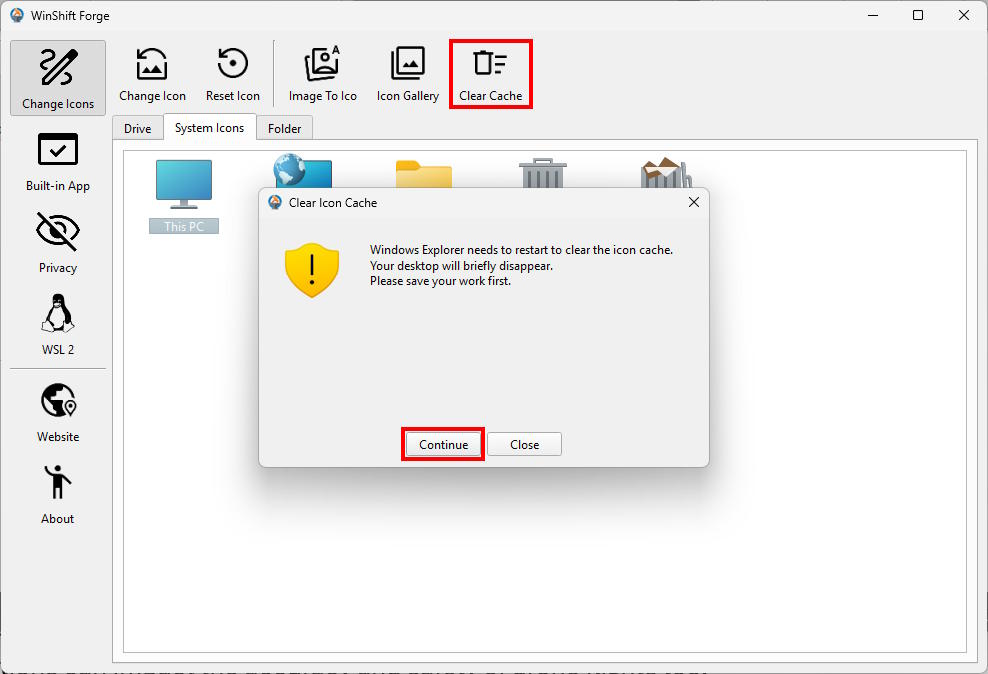
If your changes don’t appear immediately due to the Windows Icon Cache:
- Click the Clear Cache button on the WinShift Forge toolbar.
- Click Continue to start the clearing process.
- The Refresh: WinShift Forge will automatically terminate Windows Explorer and relaunch it.
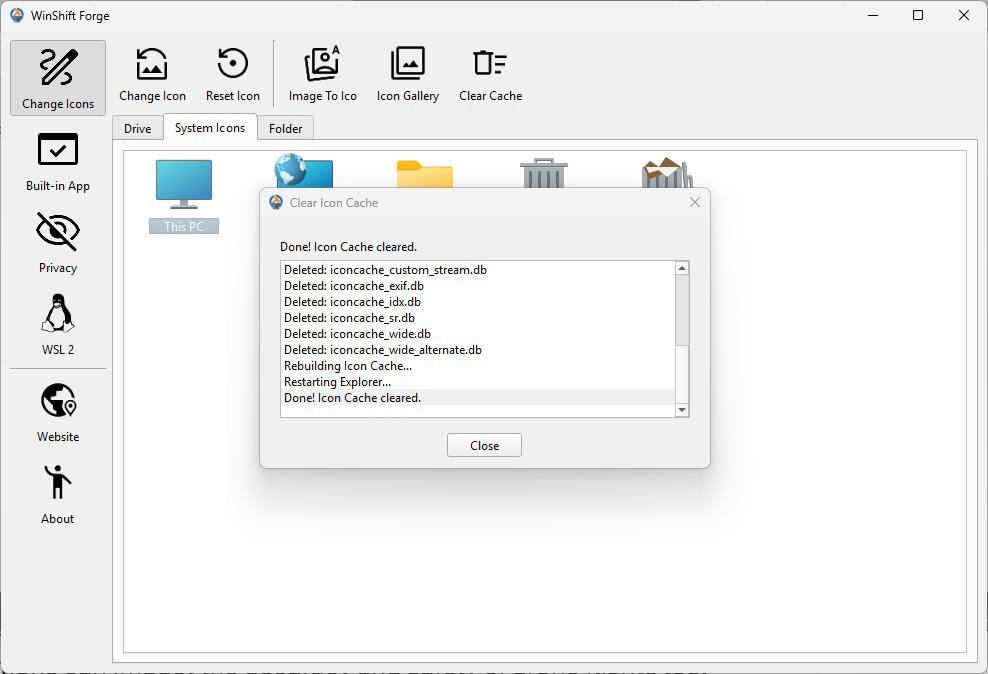
Note: Don't worry if your taskbar disappears for a moment; it's just Windows reloading your new designs!
Conclusion
Customizing your workspace makes Windows more functional and personalized. By using WinShift Forge, you can create a system that truly feels like yours. The power is now in your hands!